IChatClient in C#: Call Any LLM with Microsoft.Extensions.AI
Write your C# AI code once against IChatClient and change the provider in one line. A .NET 10 walkthrough with streaming, DI and a fake client for tests.
Prefer us on GoogleSee our reads first in Top Stories
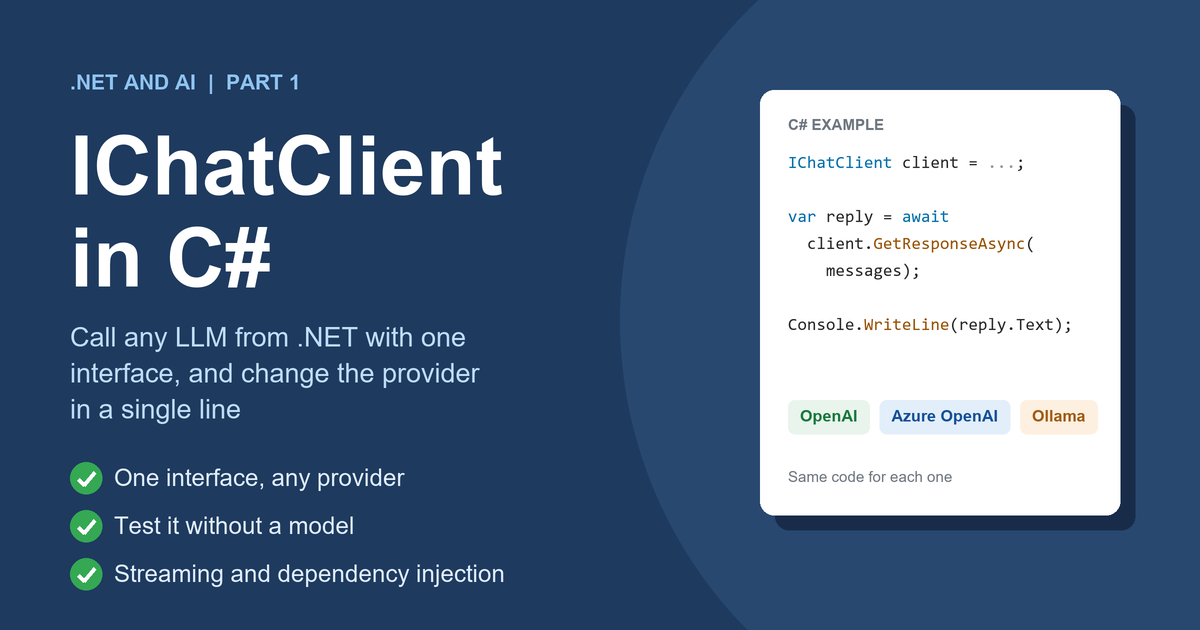
Most first attempts at adding AI to a .NET app begin the same way: install the SDK of one provider, call it from a controller, and move on. It works, and it also quietly ties every part of your code to that provider's types. A month later you want to try a cheaper model, run a local one for development, or write a test that does not need a network, and you find the provider's classes in forty places.
Microsoft.Extensions.AI exists to remove that problem. It gives you one small interface, IChatClient, and every provider plugs in behind it. In this post you will build a .NET 10 console app whose logic knows only that interface, run it without any model at all, add streaming, and register it with dependency injection the way a real ASP.NET Core app would.
This is part 1 of a series on building AI features in .NET, from the first call to production. The examples use .NET 10 and Microsoft.Extensions.AI 11.0.1, and the AI libraries move quickly, so check the package page for the version you install.
Why one interface is worth it
Think about what an AI feature needs from the model: send a list of messages, get text back, optionally get the text as it is produced. That is the same for every provider. What differs is how you authenticate, what the client class is called, and how the request is shaped on the wire.
If your application code uses the provider's own classes, those differences leak everywhere. If it uses one interface, they stay in one place: the single line that creates the client. That gives you three practical benefits:
- Switching is cheap. Move from one hosted model to another, or to a local model, by changing where the client is created.
- Testing is possible. A fake client that returns fixed text lets you test your own code with no network, no key and no cost.
- Cross-cutting features can be added around the client. Logging, caching and retries wrap an
IChatClientand still look like anIChatClient.
What IChatClient looks like
The interface is small. Its main members are:
GetResponseAsyncsends messages and returns the whole reply as aChatResponse.GetStreamingResponseAsyncreturns the reply as a stream ofChatResponseUpdatepieces.GetServicelets a client expose extra services, such as its own metadata.
It also implements IDisposable, which matters later when you write a fake: your class will not compile without a Dispose method.
The messages you send are ChatMessage objects. Each has a ChatRole (System, User or Assistant) and text. Settings such as temperature and the maximum output length go in a ChatOptions object. The reply's text is available as response.Text.
What you need before you start
You need the .NET 10 SDK and any editor you like, such as Visual Studio, Rider or VS Code. You do not need an API key or an account to follow the examples, because the code runs against a fake client first. A key only comes into play in the section on real providers.
Set up the project
Create a console app and add the package:
dotnet new console -n Part1 --framework net10.0
cd Part1
dotnet add package Microsoft.Extensions.AI
dotnet add package Microsoft.Extensions.DependencyInjection
The second package is only needed for the dependency injection section near the end. Neither package talks to any model by itself. They define the abstraction; a provider package supplies the real client.
Write your logic against the interface
Here is a small function that summarises text. Notice that it takes an IChatClient and nothing provider specific:
using Microsoft.Extensions.AI;

static async Task<string> SummariseAsync(IChatClient client, string text)
{
    var messages = new List<ChatMessage>
    {
        new(ChatRole.System, "You summarise text in one sentence."),
        new(ChatRole.User, text),
    };

    ChatResponse response = await client.GetResponseAsync(
        messages,
        new ChatOptions { Temperature = 0.2f, MaxOutputTokens = 100 });

    return response.Text;
}
The system message sets the behaviour, the user message carries the input, and ChatOptions keeps the output short and fairly predictable. A low temperature makes the wording more stable between runs. This function is the part of your app that has value, and it never mentions a provider.
Test it without any model
You can run this function right now, with no key and no network, by giving it a client that returns fixed text. A fake is not a replacement for trying a real model, but it proves that your own plumbing works: the messages are built, the options arrive, and the result is read correctly.
using System.Runtime.CompilerServices;
using Microsoft.Extensions.AI;

sealed class FakeChatClient : IChatClient
{
    public Task<ChatResponse> GetResponseAsync(
        IEnumerable<ChatMessage> messages,
        ChatOptions? options = null,
        CancellationToken cancellationToken = default)
    {
        var last = messages.Last();
        var text = $"[fake] you sent {last.Text!.Length} characters; temperature={options?.Temperature}";
        return Task.FromResult(new ChatResponse(new ChatMessage(ChatRole.Assistant, text)));
    }

    public async IAsyncEnumerable<ChatResponseUpdate> GetStreamingResponseAsync(
        IEnumerable<ChatMessage> messages,
        ChatOptions? options = null,
        [EnumeratorCancellation] CancellationToken cancellationToken = default)
    {
        foreach (var word in new[] { "Hello", " from", " a", " fake", " stream" })
        {
            await Task.Yield();
            yield return new ChatResponseUpdate(ChatRole.Assistant, word);
        }
    }

    public object? GetService(Type serviceType, object? serviceKey = null) => null;
    public void Dispose() { }
}
Call the function with it:
IChatClient client = new FakeChatClient();
Console.WriteLine(await SummariseAsync(client, "A long article about dependency injection..."));
Running the project prints this:
[fake] you sent 44 characters; temperature=0.2
That output comes from the fake, not from a model, so it says nothing about the quality of a summary. What it does show is that the temperature you set reaches the client and that the text you built was received. When you write unit tests for an AI feature, this is the kind of fake you will use for everything that is not the model's own behaviour.
Streaming responses
For a chat page, waiting for the full reply feels slow. Streaming shows the text as it is produced. With IChatClient it is an await foreach over GetStreamingResponseAsync:
await foreach (ChatResponseUpdate update in client.GetStreamingResponseAsync(
    [new ChatMessage(ChatRole.User, "Hi")]))
{
    Console.Write(update.Text);
}
Console.WriteLine();
With the fake client, the run prints:
Hello from a fake stream
Each ChatResponseUpdate carries a small piece of text. In a web app you would forward those pieces to the browser as they arrive, for example over server-sent events or SignalR. The calling code is the same no matter which provider is behind the interface.
Plug in a real provider
When you are ready for a real model, only the line that creates the client changes. The examples below follow each provider's official documentation. Package versions and prerelease status change, so check the package page before you copy them.
OpenAI. The Microsoft.Extensions.AI.OpenAI package adds an AsIChatClient extension to the OpenAI SDK's chat client:
using OpenAI;
using Microsoft.Extensions.AI;

IChatClient client = new OpenAIClient(Environment.GetEnvironmentVariable("OPENAI_API_KEY")!)
    .GetChatClient("your-model-name")
    .AsIChatClient();
Azure OpenAI. The same pattern works with AzureOpenAIClient and a credential, where the model name is your deployment name:
IChatClient client = new AzureOpenAIClient(new Uri(endpoint), new DefaultAzureCredential())
    .GetChatClient("your-deployment-name")
    .AsIChatClient();
A local model with Ollama. The OllamaSharp package's OllamaApiClient implements IChatClient directly:
IChatClient client = new OllamaApiClient(new Uri("http://localhost:11434"), "your-local-model");
In all three cases, SummariseAsync(client, text) works unchanged. That is the whole point.
Register it once with dependency injection
In an ASP.NET Core app you do not create clients inside your logic. You register one IChatClient at start-up and let the container provide it. The package includes an AddChatClient extension for this:
using Microsoft.Extensions.DependencyInjection;

var services = new ServiceCollection();
services.AddChatClient(new FakeChatClient()); // use your real client here
services.AddTransient<SummaryService>();
using var provider = services.BuildServiceProvider();
Then write a class that depends on the interface and nothing else:
sealed class SummaryService(IChatClient chat)
{
    public async Task<string> SummariseAsync(string text, CancellationToken ct)
    {
        var response = await chat.GetResponseAsync(
            [new ChatMessage(ChatRole.System, "Summarise in one sentence."),
             new ChatMessage(ChatRole.User, text)],
            new ChatOptions { Temperature = 0.2f, MaxOutputTokens = 100 },
            ct);

        return string.IsNullOrWhiteSpace(response.Text)
            ? "(the model returned no text)"
            : response.Text;
    }
}
Resolve it and call it with a cancellation token:
using var cts = new CancellationTokenSource(TimeSpan.FromSeconds(30));
var service = provider.GetRequiredService<SummaryService>();
Console.WriteLine(await service.SummariseAsync("Some text to summarise", cts.Token));
The run prints [fake] you sent 22 characters; temperature=0.2. Swapping the fake for a real client in the AddChatClient line is the only change a production app needs. Your controllers and services stay as they are, and in tests you register the fake instead.
Keep the key out of your code
Every hosted provider needs a secret. Never write it into source code or commit it. Read it from an environment variable, as in the OpenAI example, or from .NET user secrets while developing, and from your host's secret store in production. If a key ever lands in a repository, treat it as leaked and replace it, even after you delete the commit.
What goes wrong
A few mistakes come up often when people first wire this in:
- No timeout or cancellation. Model calls can be slow. Always pass a
CancellationToken, and set a time limit as in the example above, so a stuck call does not hold a request open. - Assuming the reply always has text. A model can return an empty reply, or stop early because of a length limit. Check
response.Textbefore you use it, asSummaryServicedoes. - Hard-coding the model name. Model names change and get retired. Put the name in configuration so you can change it without a release.
- Sending too much. A long prompt costs more and can exceed the model's limit. Trim input before you send it, and set
MaxOutputTokensso a reply cannot grow without limit. - Trusting every option everywhere. Not every provider honours every
ChatOptionssetting in the same way. Read the provider's documentation for the options you depend on. - Testing only with the fake. The fake proves your plumbing. It cannot tell you whether a prompt gives good answers. You still need to try the prompt against a real model, and later in this series you will see how to evaluate that.
Summary and what is next
IChatClient is a small interface with a large payoff. You write your AI feature once, keep provider details in a single place, register the client with dependency injection, and test your own code with a fake. Streaming uses the same interface, so your chat page needs no special case.
Found this useful? Add The Briefed as a preferred source and our articles show up first when you search Google.
Prefer us on GoogleSomething wrong with this article?
Comments · 0